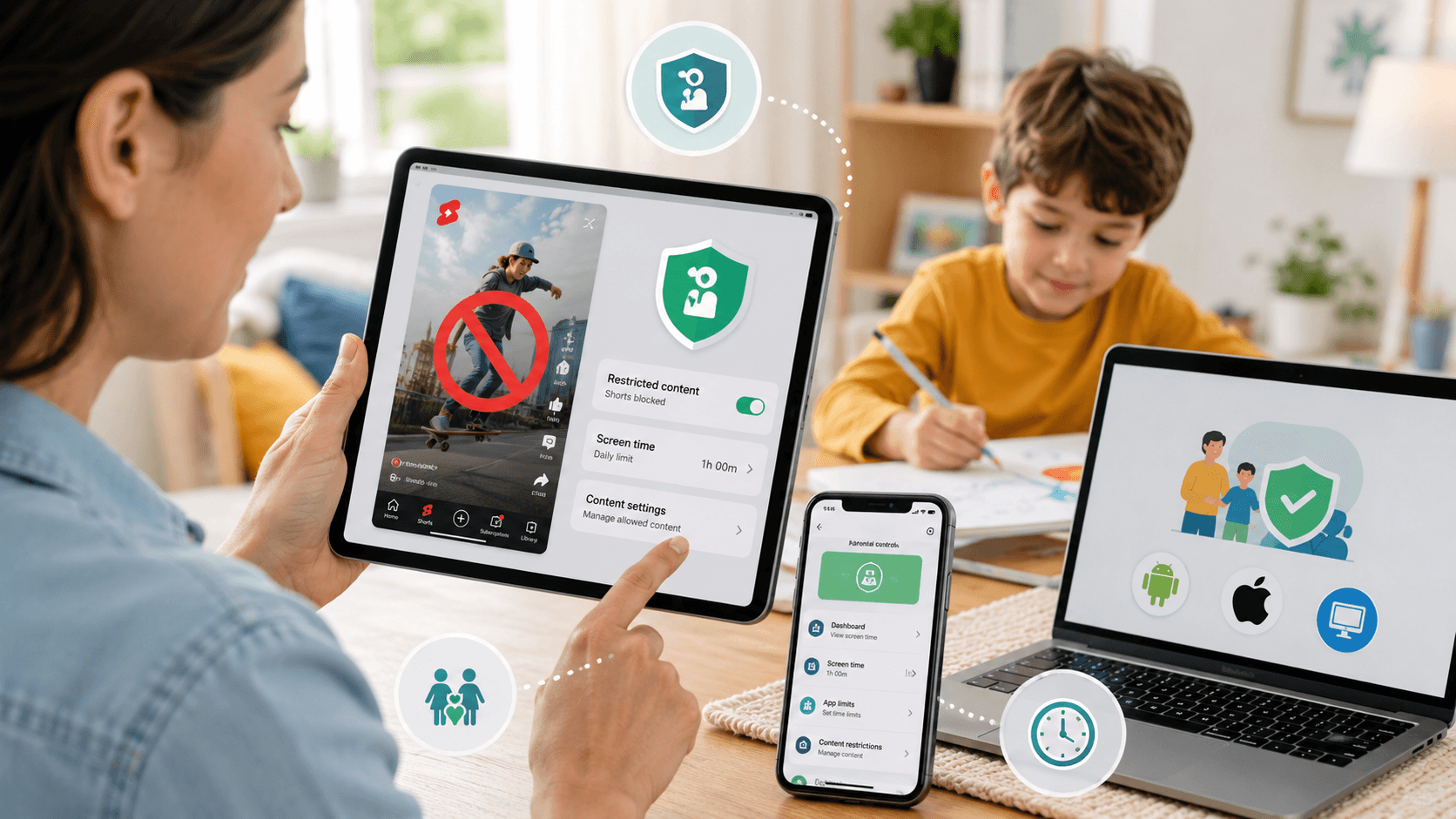
You can disable YouTube Shorts for children by using YouTube’s Supervised Experience for kids under 13, Google Family Link for teens aged 13 to 17, or a third-party screen time app for stricter cross-platform control. There is no single button that removes Shorts entirely from the main YouTube app, but combining the right parental controls gets you close. For more hands-on tips, browse our best gadget guides and Tech articles.
Key Takeaways
- YouTube’s Supervised Experience (for children under 13) removes the Shorts shelf entirely when set to “Younger” or “Younger Teen” content modes.
- Google Family Link lets parents cap daily YouTube usage and block the app outright on Android and iOS for teens aged 13 to 17, but does not suppress Shorts within the app on its own.
- Third-party apps such as Bark, Circle, and Qustodio can block YouTube Shorts at the network or app level and work across both iOS and Android devices.
- YouTube rolled out a native zero-minute daily timer for Shorts in April 2026, giving users a built-in way to remove Shorts from their own feed without parental controls.
- No method is foolproof if a child has access to a browser, so pairing app-level controls with router-level filtering closes the most common workaround.
What Is YouTube Shorts and Why Are Parents Concerned?
YouTube Shorts is YouTube’s short-form vertical video format, capped at 60 seconds per clip, and its algorithm-driven feed is designed to autoplay content continuously, which is a core concern for parents managing screen time.
YouTube launched Shorts in the US in 2021 as a direct competitor to TikTok. By 2024, YouTube reported that Shorts was generating over 70 billion daily views globally, making it one of the most-watched short-video products on any platform. For parents, that reach is precisely the problem. The Shorts feed operates on a recommendation algorithm that prioritizes watch time and re-engagement. Unlike searching for a specific video, children who open the Shorts tab enter an endless scroll with no natural stopping point. Research from Common Sense Media suggests that autoplay and infinite scroll mechanics meaningfully increase time-on-screen for children aged 8 to 12, a demographic that makes up a significant portion of YouTube’s actual (though not officially targeted) user base. Parents raising this concern are not being overprotective. YouTube’s own terms of service set the minimum age at 13, yet the platform remains one of the most-used apps among children under that age. The Shorts format compounds the issue because it is faster to consume, harder to interrupt, and often surfaces content that would not pass a parent’s review, even within YouTube’s content filters.
Is Shorts Different From Regular YouTube?
Yes, in a meaningful way. Standard YouTube videos require a child to search, select, and sit through longer content. Shorts removes that friction entirely. The tab auto-loads on the YouTube home screen on both Android and iOS, and the algorithm refreshes content with every swipe. That design is intentional, and it is what makes passive, extended viewing so easy for younger users.
How to Block YouTube Shorts Using YouTube’s Supervised Experience (For Kids Under 13)
YouTube’s Supervised Experience is the most complete built-in solution for parents of children under 13, and when configured to “Younger” or “Younger Teen” mode, it removes the Shorts tab from the child’s YouTube view entirely.
This is YouTube’s own parental control product, and it is free. It works by linking a child’s Google account to a parent’s Google account, then letting the parent choose a content level that determines what the child can see.
Setting Up a Supervised Experience on Android or iOS
Start on the parent’s device. Open the YouTube app and tap the profile icon in the top right corner. Select “Settings,” then “Supervise with Family Link.” If your child does not yet have a Google account, you will be prompted to create one through Google Family Link during this setup flow. Once the child’s account is linked, the parent chooses a content mode. There are three options: “Younger” (pre-teen content only), “Younger Teen” (broader content, still filtered), and “Older Teen” (close to standard YouTube). Only the first two modes remove the Shorts shelf from the child’s YouTube home screen. The “Older Teen” mode leaves Shorts accessible. After setup, the child must be signed into their supervised Google account on the YouTube app for the restrictions to apply. If they use YouTube while signed out, the filters do not carry over. This is the most common gap parents miss.
What Does the Supervised Experience Actually Block?
In “Younger” mode, the Shorts tab disappears entirely. The child cannot browse Shorts, and individual Short videos do not appear in search results or recommendations. In “Younger Teen” mode, the Shorts tab is also removed, but the child retains access to a wider range of long-form content. Neither mode allows the child to override the settings without the parent’s Google account credentials. One real limitation: the Supervised Experience only applies inside the YouTube app. If a child opens a browser and navigates to youtube.com, the supervised account settings do not automatically apply unless SafeSearch and additional browser-level controls are also active.
How to Use Google Family Link to Limit Shorts for Teens (Ages 13 to 17)
Google Family Link gives parents daily screen time controls and the ability to block the YouTube app outright for teens aged 13 to 17, but it does not surgically suppress Shorts within the app the way a Supervised Experience does for younger children.
Once a child turns 13, they graduate out of the fully supervised account model. Google Family Link still functions as a management layer, but the teen gains more autonomy. Parents can set a daily time limit for YouTube specifically, schedule downtime windows where YouTube is unavailable, and approve or block app installs.
How to Set a Daily YouTube Limit Through Family Link
On the parent’s Android or iOS device, open the Google Family Link app. Select the child’s account, tap “App activity,” and find YouTube in the list. Tap “Set limit” and choose a daily maximum. Once the child hits that limit, the YouTube app locks for the rest of the day. This approach does not specifically target Shorts. It limits all YouTube use equally, which means a teen who wants to watch a full-length documentary loses access at the same time as one who would otherwise scroll Shorts for two hours. Parents who want to be more surgical will need to combine Family Link with a third-party tool or router-level control.
Blocking YouTube Entirely Through Family Link
If the goal is full removal rather than time-capping, Family Link allows parents to block the YouTube app completely. From the Family Link app, go to “Controls,” select “App controls,” find YouTube, and toggle it off. The teen will see the app on their device but will be unable to open it. This is the nuclear option, and it is worth naming a real risk: teens who are blocked from YouTube entirely often find workarounds through friends’ devices, school networks, or VPNs. Blocking the app without a conversation about why tends to be less durable than pairing the restriction with an ongoing discussion about screen time habits.
How to Block YouTube Shorts With Third-Party Parental Control Apps
Third-party tools like Bark, Circle, and Qustodio can block YouTube Shorts more precisely than Google’s native tools, and some work at the network level, meaning they catch browser-based workarounds too.
Google’s built-in options work well within their limits, but they leave gaps, particularly for teens on “Older Teen” supervised accounts or children using shared devices. Third-party parental control apps are designed to close those gaps.
Bark
Bark takes a monitoring-first approach. Rather than blocking YouTube outright, it uses AI to scan a child’s activity for harmful content and alerts parents when something warrants attention. Bark does allow parents to block YouTube or set time limits, but its primary value is detection rather than prevention. Pricing starts at $14 per month for the Bark Jr. plan.
Circle
Circle offers both a hardware device (the Circle Home Plus, around $129) and a companion app subscription (around $9.99 per month). The hardware version manages devices connected to your home Wi-Fi router, letting parents block YouTube Shorts specifically by filtering the domain or the app. Circle also has a mobile component that follows children off the home network. One honest limitation: VPN apps on a child’s device can bypass Circle’s filtering if the VPN is not itself blocked.
Qustodio
Qustodio works on Android, iOS, Windows, and Mac, covering school laptops as well as phones. Parents can block the YouTube app, set time limits per app, and view usage reports. Qustodio’s paid plans start at around $54.95 per year for up to 5 devices. It does not offer Shorts-specific blocking, but blocking the YouTube app or setting a tight daily limit achieves the same outcome. If you are also setting up audio on a gaming console, see our guide on how to connect AirPods to PS5 for more device setup help.
Comparison: Parental Control Methods for YouTube Shorts
| Method | Age Range | Blocks Shorts Specifically? | Works in Browser? | Cost |
|---|---|---|---|---|
| YouTube Supervised Experience (Younger / Younger Teen mode) | Under 13 | Yes, removes Shorts tab | No (app only) | Free |
| Google Family Link (app block or time limit) | 13 to 17 | No (limits all YouTube) | No | Free |
| Bark (monitoring + app controls) | Any | No (blocks full app) | Partial | From $14/month |
| Circle Home Plus (router-level) | Any | Yes (via domain filtering) | Yes (on home network) | $129 device + ~$9.99/month |
| Qustodio (cross-platform app) | Any | No (blocks full app) | Partial | From ~$54.95/year |
| YouTube Zero-Minute Shorts Timer (self-managed) | Adults / teens with account access | Yes, removes Shorts from feed | Yes (account-level) | Free |
How to Block YouTube Shorts on Android Devices
Android gives parents more flexibility than most platforms when it comes to granular app control, largely because the operating system allows third-party launchers, deeper screen time settings, and sideloading alternatives. If your child uses an Android phone or tablet, you have several layers of protection available before you ever need to pay for a third-party app.
The most accessible starting point is Google Family Link, which is free and works across Android devices running version 8.0 or higher. Once you set up a supervised Google account for your child and link it through the Family Link app on your own device, you can navigate to the YouTube settings within Family Link and switch the account to YouTube Kids mode. This replaces the standard YouTube app experience with the curated YouTube Kids interface, which does not include Shorts at all. The trade-off is that it also removes access to a large portion of general YouTube content, so it works best for children under 10 or 11.
For older kids who need access to regular YouTube, the more surgical approach on Android is to use Digital Wellbeing, which is built into most Android devices running version 9 and above. Go to Settings, then Digital Wellbeing and Parental Controls, then select the YouTube app from the app list. From here you can set a daily time limit specifically for YouTube. While this does not isolate Shorts from long-form video, pairing a strict daily limit with the zero-minute Shorts timer described later in this article creates a reasonably effective combination.
If you want to go further, Android also allows you to restrict YouTube entirely and install an alternative app in its place. Apps like YouTube ReVanced — which we must note is an unofficial, community-maintained third-party client that users install at their own discretion — include a built-in option to disable the Shorts shelf and Shorts tab entirely from the interface. Because ReVanced is not available on the Google Play Store, installation requires enabling installs from unknown sources and sideloading the APK manually — a step most children cannot perform themselves. Once installed and configured by a parent, the child sees a standard YouTube interface with the Shorts section simply absent from the navigation and feed. This method requires a bit of technical comfort but costs nothing and does not affect long-form content in any way.
One Android-specific caveat worth noting: if your child has multiple Google accounts on the same device, content restrictions set through Family Link apply only to the supervised account. If they can switch to an unsupervised account, the restrictions do not follow. Auditing the accounts active on your child’s device before setting any of this up is a good first step.
How to Block YouTube Shorts on iOS and iPadOS
Apple’s approach to parental controls is more centralized than Android’s, which makes setup slightly more straightforward but leaves fewer options for power users who want fine-grained control. Everything flows through Screen Time, accessible under Settings on any iPhone or iPad running iOS 12 or later.
The most direct method for younger children on iOS mirrors the Android approach: replace YouTube with YouTube Kids. You can use Screen Time to block the standard YouTube app entirely by going to Settings, then Screen Time, then Content and Privacy Restrictions, then Allowed Apps. From there, toggle off any browser (Safari, Chrome) that could be used to access YouTube on the web, and ensure only YouTube Kids is installed. This removes Shorts from the equation entirely because the YouTube Kids platform does not carry the Shorts format.
For children who are old enough to use standard YouTube, the practical workaround on iOS involves a combination of two Screen Time features. First, set a downtime schedule for the YouTube app so it is only accessible during specific hours — after school until dinner, for example, but not at bedtime. Second, use the Communication Limits and App Limits features together to cap total daily YouTube usage. Neither feature isolates Shorts specifically, but a meaningful time cap reduces the window in which passive Shorts consumption can spiral.
A more targeted method that some iOS parents have found effective is blocking YouTube’s Shorts URLs at the DNS level using Apple’s built-in Screen Time web content filter. Under Screen Time, go to Content and Privacy Restrictions, then Content Restrictions, then Web Content, and select Limit Adult Websites. This opens a section where you can manually add websites to the “Never Allow” list. Adding youtube.com/shorts to this list will block direct navigation to Shorts URLs in Safari. However, this does not block Shorts from appearing inside the YouTube app itself, so it works best as a complement to another method rather than a standalone solution.
Parents managing an iPhone for a younger teen may also want to enable Ask to Buy through Family Sharing so any new app installation requires parental approval. This prevents a child from independently downloading a different browser or YouTube-adjacent app that bypasses the controls already in place.
How to Use YouTube’s Zero-Minute Shorts Timer to Remove Shorts from Your Feed (For Adults)
In April 2026, YouTube rolled out a native feature that many creators and professionals had been requesting for years: the ability to set a zero-minute daily limit specifically for Shorts. Unlike the blunt time limits that cap your total YouTube usage, this tool targets only the Shorts feed, leaving long-form video, subscriptions, and playlists entirely untouched. If you find yourself burning 45 minutes on Shorts before ever getting to the documentary you opened the app to watch, this is the most precise fix available without any third-party tools or router configurations.
Step-by-Step: Enabling the Zero-Minute Limit
To set it up, open the YouTube app on your phone and follow these steps based on the updated 2026 interface:
- Tap your profile picture (You) in the bottom right corner of the screen.
- Tap the Settings (gear icon) in the top right corner.
- Select Time management (or Time watched depending on your region) from the menu.
- Look for the Shorts feed limit section and toggle it on.
- Scroll the duration options down and set the value to 0 minutes, then confirm.
The “Speed Bump” Effect: How It Works in Practice
Once active, the setting creates immediate friction. The moment you accidentally open the Shorts tab or an algorithmic short video begins to autoplay, YouTube instantly blocks the feed. Instead of the video, a full-screen prompt appears stating that you have reached your Shorts limit for the day.
The feed does not continue scrolling. For adult accounts, you can tap through or ignore the warning if you choose to, meaning this is not an unpassable lock. Instead, it functions as a psychological “speed bump” designed to break the automatic autopilot scrolling cycle and force a moment of conscious choice. For most adults using it intentionally, that brief second of friction is more than enough to close the tab.
Multi-Device Sync and Desktop Limitations
The zero-minute setting persists across days by default; you do not need to reconfigure it each morning. It applies at the account level, meaning if you are signed into the same Google account, the restriction syncs across your devices.
Note for Desktop Users: As of the mid-2026 rollout, this native configuration menu is exclusive to the iOS and Android mobile apps. However, once you activate the zero-minute timer on your phone, the account sync ensures that the Shorts feed friction follows you to the desktop version of YouTube as well.
The Content Creator’s Asymmetry Trick
For creators specifically, this feature has practical workflow value beyond simple distraction management. If you produce long-form content and want to maintain a clear mental separation between your own Shorts production (handled in Creator Studio) and passive Shorts consumption, the zero-minute timer lets you stay active in the Shorts ecosystem as a publisher without being pulled into it as a viewer. That asymmetry – publishing without consuming – is difficult to sustain through willpower alone but becomes relatively easy once the friction prompt is in place.
Cleaning Up Residual Homepage Thumbnails
One limitation worth naming: the zero-minute timer mainly targets the endless scrolling feed, but it does not completely scrub individual Shorts thumbnails from your standard homepage recommendations. Clips can still appear in your Subscriptions feed or search results.
If you want those removed as well, combine the timer with aggressive use of the “Not interested” and “Don’t recommend channel” options on any Shorts thumbnails that pop up. This trains the recommendation algorithm over time to clean up your main dashboard. Currently, there is no single native toggle that completely deletes the Shorts layout from the homepage without using a third-party browser extension.
Whichever method you choose – Google Family Link, iOS Screen Time, a router-level filter like Circle, or YouTube’s own zero-minute timer – the most important variable is consistency between the device controls you set and the household conversations you have alongside them. Technical blocks are easier to circumvent than a child who genuinely understands why a boundary exists. The tools in this guide give you the mechanisms; the context around why you are using them is what makes them stick. Start with the method that fits your household’s technical comfort and your child’s age, confirm it is working across all the devices they actually use, and revisit the settings every few months as YouTube updates its interface and your child’s device access evolves.
Frequently Asked Questions
Can I block YouTube Shorts without blocking all of YouTube?
Yes, in most cases. On desktop browsers, extensions like Unhook let you remove the Shorts shelf while keeping the rest of YouTube fully accessible. On Android, modified clients like YouTube ReVanced have a built-in toggle to hide Shorts specifically. On iOS, the options are more limited — Screen Time can block the Shorts URL path in Safari, but the Shorts tab inside the YouTube app itself cannot be removed without replacing the app entirely with YouTube Kids or restricting YouTube altogether.
Does YouTube Kids include Shorts?
No. The YouTube Kids app does not include the Shorts format. It is one of the most reliable ways to give younger children access to YouTube content without exposing them to the Shorts feed, autoplay chains, or the broader recommendation algorithm that drives most Shorts consumption on the standard app.
Will a VPN let my child bypass YouTube Shorts blocks?
It depends on the method you used to block Shorts. A VPN will bypass router-level DNS filters like Circle or OpenDNS because the traffic is encrypted and routed through a different server before it reaches your network’s filter. It will not bypass app-level restrictions set through Google Family Link or iOS Screen Time, because those controls are enforced on the device itself regardless of network. If your child has access to a VPN app, the strongest approach is to combine device-level controls with a router filter so neither can be bypassed independently.
How often do I need to update parental control settings as YouTube changes its interface?
YouTube updates its app roughly every two to four weeks, and major interface changes — including how Shorts appear in the navigation and feed — happen several times per year. URL-based blocks and browser extension rules are the most fragile, since a path change from /shorts/ to a new URL structure can break them overnight. App-level controls from Google Family Link and Apple Screen Time are maintained by Google and Apple respectively and tend to stay current through automatic updates. Plan to audit your settings every two to three months and after any major YouTube app update your child mentions or you notice.