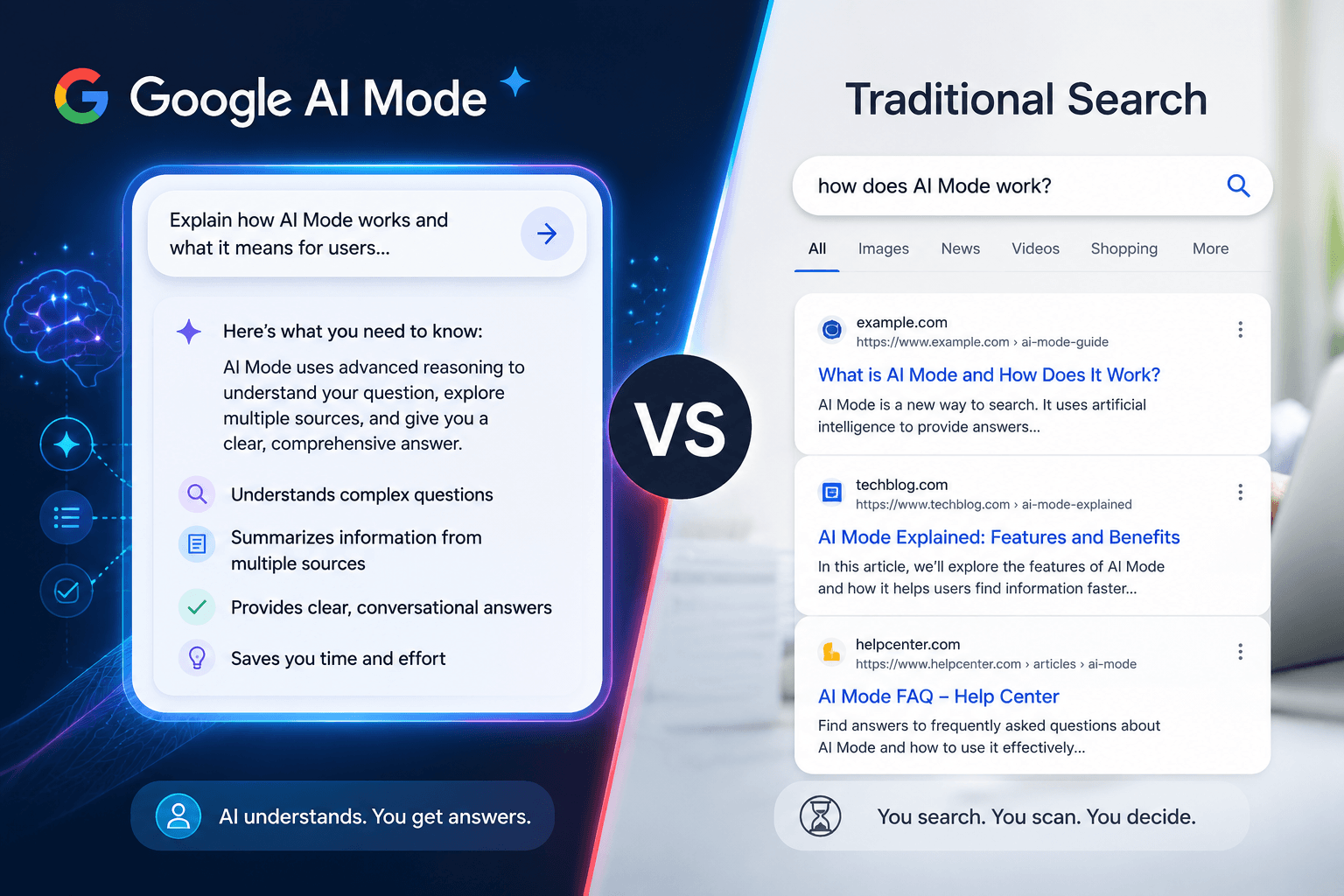
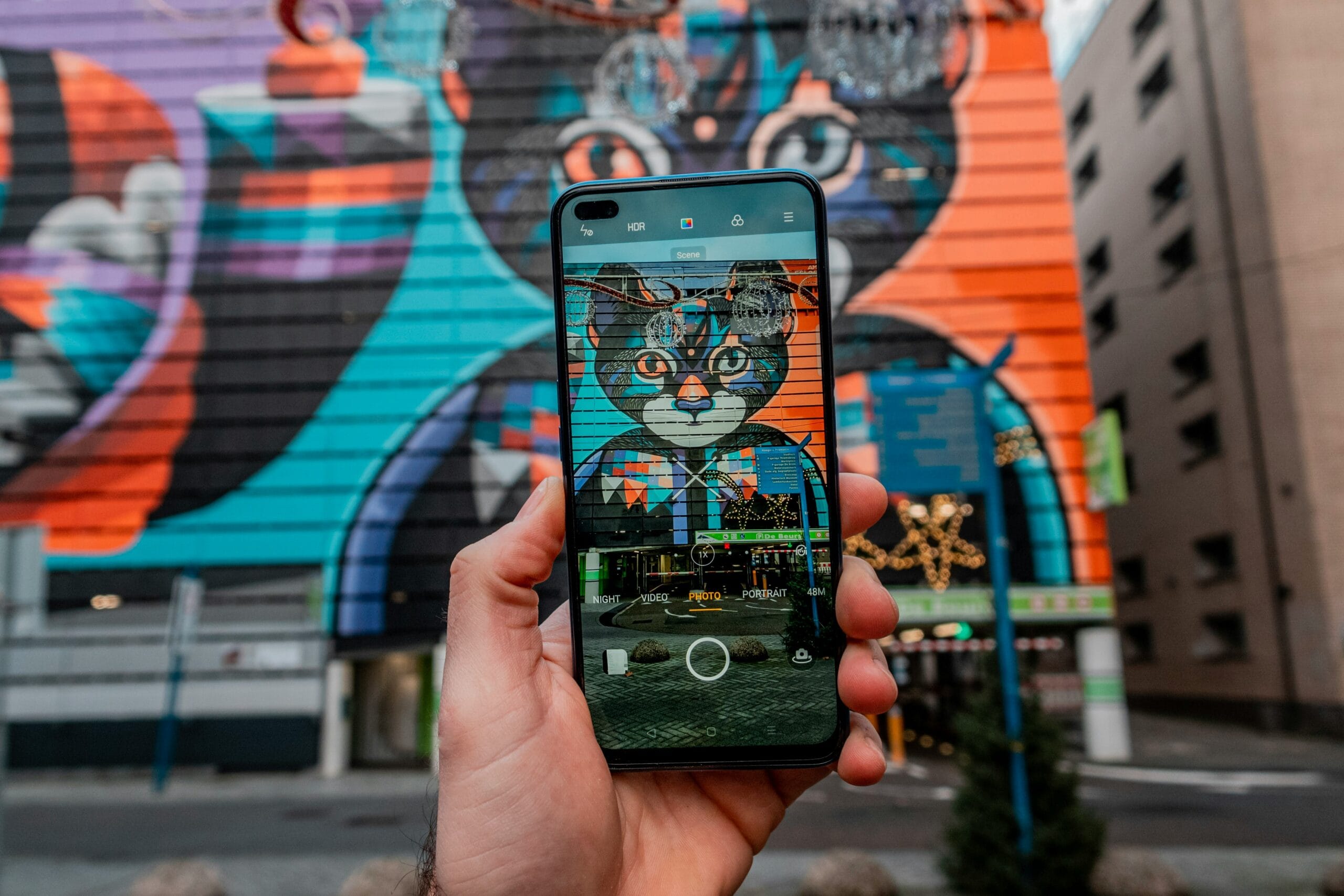
Gemini AI photo features let you search, describe, and creatively reimagine images directly inside Google Photos using natural language prompts and Google’s Imagen model. You can ask Gemini to find specific memories, generate personalized artwork based on your own pictures, and even create custom scenes that place you or your family inside AI-generated images — all from your phone or desktop without any design skills required.
Key Takeaways
- Gemini’s Google Photos integration is available on Android and iOS, but the AI image generation features currently require a Google One AI Premium subscription at $19.99/month.
- The “Reimagine” feature uses Google’s Imagen 4 model to generate custom artwork from your personal photos, letting you apply artistic styles, swap backgrounds, and create entirely new scenes.
- Gemini can search your entire Google Photos library using plain-English queries like “beach trip with mom in 2022” — no manual tagging or album organization needed.
- Personal Intelligence, the feature that connects Gemini to your Google Photos, Gmail, and other apps, is currently unavailable in the EU and UK due to regional data regulations.
- You can limit what Gemini accesses by managing app connections inside the Gemini app settings, under “Connected apps.”
What Is Gemini AI Photo and How Does It Work With Google Photos?
Gemini’s integration with Google Photos gives Google’s AI assistant direct access to your personal image library, enabling natural-language search and AI-powered image creation from a single interface.
If you’ve ever spent five minutes scrolling to find one photo from a camping trip three summers ago, you already understand the core problem Gemini is trying to solve. The Gemini and Google Photos integration, rolled out broadly through 2024 and 2025, connects Google’s AI assistant to your personal photo library so you can ask questions, search for specific moments, and generate creative images using your actual memories as source material. The integration works through a feature Google calls Personal Intelligence, which gives Gemini permission to read and reference content across your Google apps, including Photos, Gmail, and Google Calendar. When you open the Gemini app and ask something like “show me photos from my daughter’s birthday last spring,” Gemini scans your library, pulls relevant images, and surfaces them in the conversation thread. No albums required, no keyword tags needed beforehand. On the creative side, Gemini can take one of your existing photos and use it as a reference to generate entirely new AI images. These are not simple filters applied on top of your picture. Gemini uses Google’s Imagen model to synthesize new scenes, meaning it can take a photo of you on a hiking trail and render a stylized watercolor painting version, or place you in a fantasy landscape based on that original shot. The output is a fully generated image, not an edit of the original file. The feature is accessible through the Gemini app on Android and iOS. Some capabilities are also available through Google Photos itself on certain Android devices running the Gemini Nano on-device model, which handles lighter AI tasks without a cloud round-trip.
How to Enable Gemini in Google Photos
Enabling Gemini in Google Photos takes less than two minutes and mainly requires granting the Gemini app permission to access your library through the Connected Apps setting.
Before anything works, you need the Gemini app installed on your device, either Android or iOS. If you are on Android, Gemini may already be set as your default assistant, in which case the Google Photos connection can be enabled automatically. Here is how to get fully set up:
Step-by-Step Setup
Open the Gemini app and tap your profile picture in the top-right corner. Go to “Gemini Apps Activity” and make sure activity is turned on — this is required for Gemini to retain context across your conversations and pull from connected apps. Next, go back to the main settings and tap “Connected apps.” You should see Google Photos listed there. Tap it and confirm access. Once connected, you can return to the main Gemini chat interface and start asking photo-related questions directly. Try something specific: “Find photos of my dog from last winter” or “Show me pictures from my trip to New York.” Gemini will surface relevant images from your library inside the chat. For the AI image generation features, including the Reimagine tool, you need a Google One AI Premium subscription. At $19.99/month, this tier includes access to Gemini Advanced, which is the version of the assistant capable of more sophisticated image generation tasks using Imagen 4. Some Pixel device owners may have access to a free trial period bundled with their hardware purchase. On supported Pixel phones (Pixel 9 series and later), some on-device Gemini Nano features work without a Premium subscription, though the full creative image generation capabilities still require the cloud-based Gemini Advanced tier.
What Can Gemini AI Do With Your Photos?
Gemini can search your photo library with plain-English questions, describe what’s in specific images, and generate brand-new AI artwork using your personal photos as creative references.
The feature set breaks into two clear categories: search and understanding, and creative generation. Both are genuinely useful, but they work very differently under the hood.
Smart Photo Search and Understanding
Gemini’s search capability is the more immediately practical of the two. You can ask questions that would be impossible to answer with Google Photos’ standard keyword search. Examples that work well include asking Gemini to find photos taken at a specific event without knowing the exact date, asking it to identify all photos where a specific person appears, or asking it to summarize what a particular trip looked like across a set of images. Gemini can also describe what it sees in a photo you share directly in the chat, useful for identifying landmarks, reading text in images, or getting a description of a scene. This works through Gemini’s multimodal capabilities, where the model processes both text and image content together.
AI Image Generation From Your Photos
This is where Gemini AI photo features become a genuinely creative tool. Using the Reimagine feature, available inside Google Photos on supported devices and through the Gemini app on Premium, you can select one of your existing photos and prompt Gemini to generate a new artistic version of it. Practical examples of what this can produce include converting a portrait photo into an oil painting in a specific style, placing a photo of your child in a fantasy storybook scene, generating a greeting card image based on a family photo, or creating a stylized travel poster based on a landscape shot you took. The prompts can be as simple as “make this look like a watercolor painting” or as detailed as “place this person in a snowy mountain scene at sunset in the style of a vintage travel poster.” The output quality has improved noticeably since Imagen 4 became the underlying model for these features, with better handling of human faces and more coherent scene composition than earlier versions. That said, complex multi-person photos can still produce inconsistent results, and fine details like hands and text in generated backgrounds remain occasionally imperfect — a known limitation across AI image generation tools more broadly.
Gemini AI Photo Features at a Glance
The table below compares the key Gemini photo features by capability, device requirement, and subscription tier so you can see exactly what’s available at each level.
| Feature | Platform | Subscription Required | Underlying Model | Key Limitation |
|---|---|---|---|---|
| Natural-language photo search | Android, iOS | Free (Google account) | Gemini 2.0 (cloud) | Requires Connected Apps access enabled |
| Photo description and analysis | Android, iOS, web | Free (Google account) | Gemini 2.0 multimodal | User must upload or share the image manually |
| Reimagine / AI art generation | Android, iOS (Gemini app) | Google One AI Premium ($19.99/mo) | Imagen 4 | Inconsistent results with multi-person photos |
| On-device photo features (Pixel) | Pixel 9 series and later | Free on eligible Pixel devices | Gemini Nano with Multimodality | Limited to simpler queries; no full art generation |
| Personal Intelligence (cross-app context) | Android, iOS | Free (Google account) | Gemini 2.0 (cloud) | Not available in EU or UK |
| Memories and highlights generation | Android (Google Photos) | Google One storage plan recommended | Gemini Nano / cloud hybrid | Dependent on library size and photo metadata quality |
How to Turn Your Personal Photos Into AI Artwork With Gemini
Once you have Gemini set up with access to your Google Photos library, the creative process is more conversational than you might expect. You are not hunting through menus or toggling complex settings — you describe what you want, and Gemini interprets your intent using the context it already has about your images.
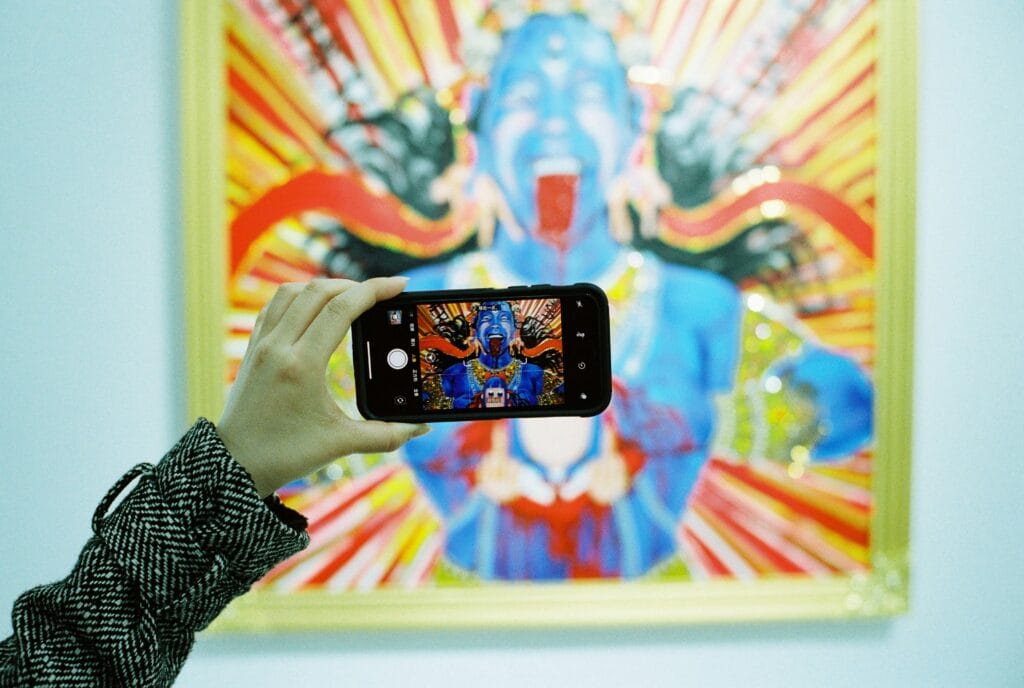
Start by opening Gemini on Android or through the web interface at gemini.google.com. If Personal Intelligence is enabled, Gemini can already surface relevant photos based on natural language. Try a prompt like: “Take a photo of my daughter from last summer and reimagine it as a watercolor painting.” Gemini will search your library for a matching image, then use its image generation capabilities (powered by Imagen) to produce a stylized version. The output is not a filter applied on top of your original — it is a new image generated from the content Gemini recognized in your photo.
For more deliberate results, being specific about artistic style makes a measurable difference. Prompts that reference a particular movement or medium — oil painting, ink sketch, Studio Ghibli-inspired illustration, 1970s Polaroid aesthetic — tend to produce more coherent outputs than vague requests like “make it look artistic.” You can also chain requests: ask Gemini to generate an artwork, then follow up with “make the background warmer” or “add a painterly texture to the sky” without starting over.
Beyond single-image transformations, Gemini can work with multiple photos at once. A prompt like “Create a travel poster using photos from my trip to Japan” pulls several images and synthesizes them into a composite — combining architectural details, color palettes, and subjects from across your library into a single cohesive piece. The results vary depending on photo quality, metadata accuracy, and how clearly your library is organized, but even imperfect outputs tend to be usable starting points for further refinement.
Google’s Imagen-based generation currently works best with portrait subjects, landscapes, and architectural scenes. Abstract images or heavily text-heavy photos can confuse the model’s compositional sense. If a generation comes out wrong, iterating with a more grounded reference — “use the photo from my Rome trip where I’m standing in front of the Pantheon” — gives the model a firmer anchor than a general description alone.
Using Gemini’s Contextual Memory to Build Ongoing Creative Projects
One underutilized aspect of Gemini’s photo tools is the way its contextual memory can support longer creative projects rather than one-off image generations. Because Gemini retains conversation context within a session – and, with Personal Intelligence enabled, can reference patterns across your photo library – you can treat it less like a single-use tool and more like a creative collaborator that accumulates understanding over time.
A practical example: if you are building a photo book or a themed series of prints, you can open a single Gemini session and work through your selection iteratively. Ask it to pull photos from a specific event, evaluate which images have the strongest compositional quality for a given style, generate stylized versions of your top picks, and then compare them side by side. Gemini can articulate why certain images work better than others given your stated artistic goal – not just produce outputs, but reason about them in plain language.
For users who shoot regularly, Gemini’s highlights and memories feature in Google Photos adds another layer. The system periodically surfaces automatically generated highlight reels and visual summaries from your library, using a combination of Gemini Nano (on-device processing) and cloud models. These are not editable in the traditional sense, but you can prompt Gemini to take a generated highlight and restyle it – asking it to produce a short-form slideshow in a consistent visual theme, for instance, or to reconstruct a memory as a series of illustrated cards.
The practical ceiling here is still real. Gemini cannot export directly to third-party print services, does not offer layer-based editing comparable to Photoshop or even Canva’s more advanced tools, and the generated images — while often striking — are not always production-ready at high resolution. Treating the outputs as drafts or concept pieces, rather than finished files, produces the most satisfying workflow. From there, a quick pass through a dedicated editing app usually closes the gap.
What Actually Happens to Your Photos When You Use Gemini (And How to Protect Yourself)
The creative potential of Gemini’s photo tools is real, but the privacy mechanics underneath them deserve clear-eyed attention before you hand the system access to years of personal images. Google’s documentation is not hidden, but it is spread across several support pages in ways that make the full picture easy to miss.
Cloud Processing vs. On-Device Execution
When you enable Gemini’s Personal Intelligence feature, you are granting the system permission to read context from connected Google apps — including Google Photos. According to Google’s own support documentation, this means Gemini can access photo content, metadata, and associated context such as location data and timestamps to respond to your prompts.
The processing for features like real-time photo queries happens on Google’s cloud infrastructure, not entirely on-device, even when Gemini Nano is involved. Nano handles certain lightweight inference tasks locally, but the generative and retrieval functions that make photo-to-art features work are cloud-side operations.
Cross-Context Data Bleed Risks
The data bleed risk most users do not consider is cross-context contamination. Because Personal Intelligence synthesizes information from multiple apps simultaneously, a photo from your library can appear in a Gemini response that was initiated by a calendar prompt or an email query — not just a direct photo request.
This is by design, but it means that images you consider private (medical photos, financial documents photographed for record-keeping, images of your home’s interior) are technically within scope of the system’s contextual reach unless you actively exclude them.
The Ethics of Third-Party Consent
Third-party consent is a related gap. If your photos include other people — family members, friends, colleagues — those individuals have not consented to having their likenesses processed by Google’s AI systems. This is not unique to Gemini, but the generative layer adds a dimension that static photo storage does not: Gemini can produce new images derived from those likenesses, not just retrieve the originals.
Google’s terms do not require you to obtain consent from third parties before using their images as generation prompts, which shifts the ethical responsibility entirely to the user.
Furthermore, Google states in its Gemini Apps Privacy Hub that activity data from Gemini interactions — including prompts and the app context used to answer them — may be reviewed by human reviewers for safety and quality purposes, with a retention window that varies by product setting. Users can disable this review opt-in, but it is not off by default.
Step-by-Step Security Protocol: How to Limit Gemini’s Access
None of this means Gemini’s photo tools are unsafe to use. It means using them thoughtfully requires following the NIST AI Risk Management Framework guidelines for cloud-connected systems. Here are the concrete steps you can take right now:
- Audit Connected Extensions: Open your Gemini app settings, navigate to Personal Intelligence/Extensions, and explicitly toggle off Google Photos if you only want to use the assistant for text-based tasks.
- Pause Your Gemini Activity: Go into your Google Account’s Data and Privacy dashboard, find your Gemini Apps Activity settings, and pause activity saving. This cuts off human review retention windows and stops Google from saving logs of your prompts and image references.
- Account Separation: If you share a tablet or account with family members, be aware that their visual data crosses paths with your Gemini context. Separate your Google accounts at the system level to avoid cross-profile data leakage.
- Enforce Sensitive Image Boundaries: Never use photos containing sensitive PII (passports, financial records) or close-ups of minors/third parties as base prompts for creative reimagining. The output file becomes a new artifact stored in the cloud that lacks the standard encryptions of your private Google Photos locker.
Frequently Asked Questions
Can Gemini edit my original photos, or does it only create new images from them?
Gemini does not edit your original photos. When you use it to generate artwork from a personal image, it produces an entirely new file based on what the model recognized in your photo. Your original image in Google Photos remains unchanged. The generated output is a separate creation, not a modified version of your file.
Do I need a paid Google plan to use Gemini’s photo-to-art features?
Basic Gemini access requires only a free Google account, and some photo query features are available at that tier. However, the most capable image generation tools — including higher-quality Imagen outputs and full Personal Intelligence functionality — are tied to Google One plans or Gemini Advanced. The features available to free users are more limited and may not include direct art generation from your photo library, depending on your region and device.
Are the AI-generated images I create with Gemini mine to use commercially?
Google’s current terms grant users broad usage rights to outputs generated through Gemini, but the commercial use picture is not entirely clear-cut. Because generated images may incorporate stylistic or compositional elements derived from training data, relying on them for commercial work carries some legal uncertainty that has not been fully resolved in court. For personal, editorial, or non-commercial creative use, the outputs are generally yours to use as you see fit under Google’s current terms.
How do I stop Gemini from accessing my Google Photos library without disabling Gemini entirely?
You can revoke Google Photos access without turning off Gemini altogether. In the Gemini app, go to your account settings and look for the Personal Intelligence or Extensions section. From there you can disconnect individual Google apps — including Photos — while keeping Gemini active for other tasks. You can also manage connected app permissions through your broader Google Account settings under the “Data and Privacy” section.