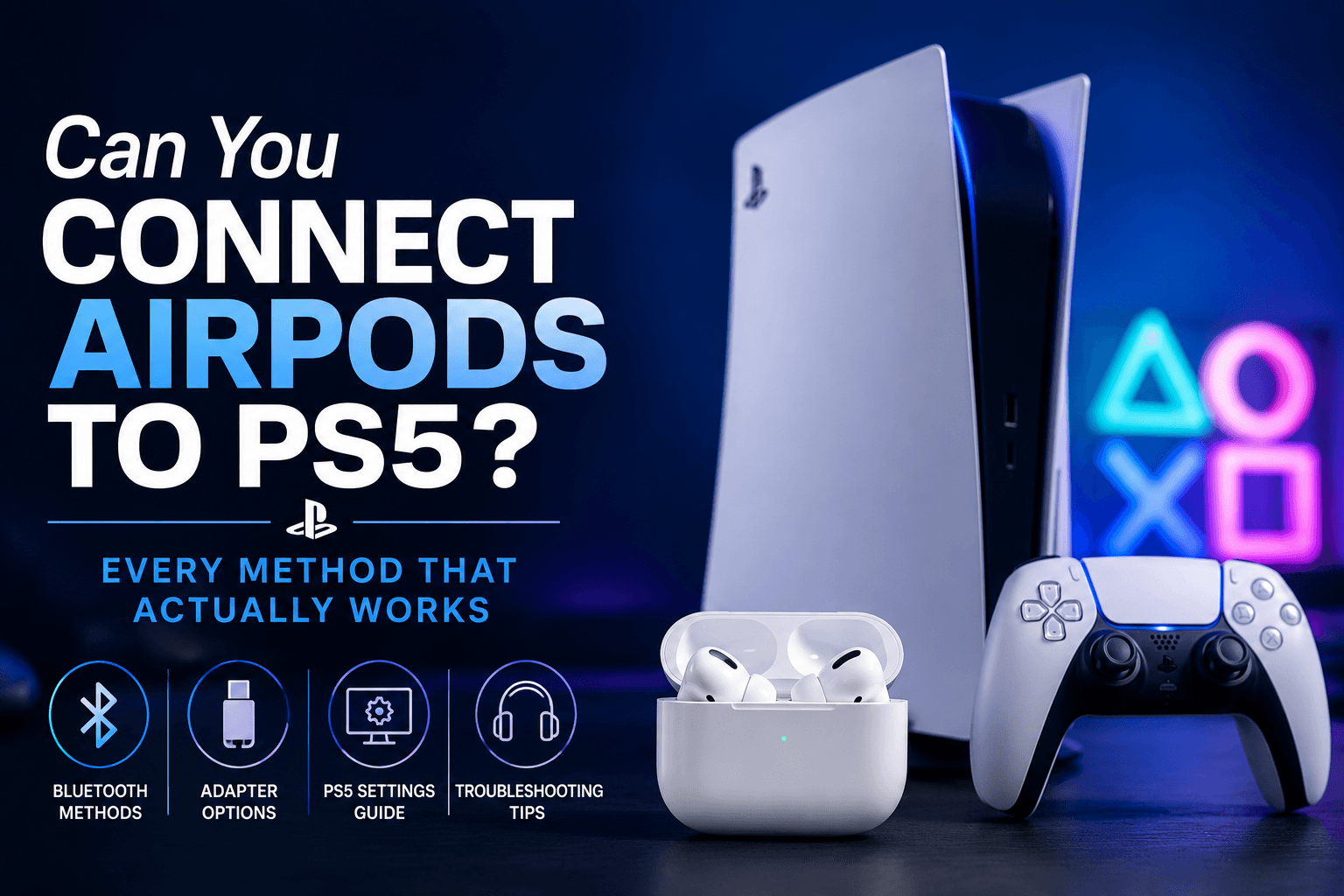
You can connect AirPods to a PS5, but not through native Bluetooth pairing. The PS5 restricts Bluetooth audio to Sony-licensed devices, so AirPods and most third-party wireless headphones require either a USB Bluetooth adapter plugged into the console or a 3.5mm adapter connected to the DualSense controller.
Key Takeaways
- The PS5 has Bluetooth 5.1 but blocks non-licensed Bluetooth audio devices, including AirPods, AirPods Pro, and virtually all third-party wireless headphones.
- A USB Bluetooth adapter (typically $15 to $40) plugged into either the PS5’s front USB-A port or rear USB-C port is the most reliable workaround and delivers the lowest latency of any wireless option.
- Some PS5-licensed wireless headsets use USB dongles rather than standard Bluetooth, bypassing the restriction entirely — these work natively with zero setup.
- When AirPods connect via a Bluetooth adapter, Apple-exclusive features including ANC, Transparency Mode, Spatial Audio, and auto-pause stop functioning completely.
- The DualSense controller’s 3.5mm headphone jack supports any wired or wired-adapter configuration, making it a zero-cost fallback for users who already own a Bluetooth-to-3.5mm adapter.
Does the PS5 Have Bluetooth?
The PS5 includes Bluetooth 5.1, but Sony restricts audio streaming to approved devices only, which excludes AirPods and most consumer Bluetooth headphones out of the box.
Yes, the PS5 ships with Bluetooth 5.1 built in. The problem is that Sony does not open that Bluetooth radio to general audio devices. The console uses Bluetooth for its own peripherals: the DualSense controller, the DualSense Edge, the PlayStation Pulse headsets, and a small number of Sony-licensed third-party accessories. Everything else, including Apple AirPods, Samsung Galaxy Buds, Bose QuietComfort headphones, and Jabra earbuds, gets blocked at the pairing stage. This is not a hardware limitation. It is a deliberate software decision, and it has been consistent across every PS5 firmware update since launch in November 2020. Sony’s rationale, which the company has not formally detailed in a public statement, is widely understood to be about controlling audio latency and ensuring a consistent experience. Standard Bluetooth A2DP audio streaming introduces 100 to 300 milliseconds of latency depending on the codec, which creates noticeable audio-video desync during gameplay. The practical effect for players is straightforward: if you want wireless audio on PS5, you either use Sony’s own ecosystem (Pulse 3D, Pulse Explore, Pulse Elite) or you work around the restriction using the methods described below. Browse more guides in our Gaming section for PS5 setup tips and accessories, or explore the broader Tech articles library for headphone and audio coverage.
How to Connect Bluetooth Headphones to PS5 via a USB Bluetooth Adapter
Plugging a USB Bluetooth adapter into the PS5 creates a separate Bluetooth radio that the console treats as a USB audio device, completely sidestepping the native Bluetooth restriction.
This is the method that works most consistently across the widest range of headphones, including AirPods, AirPods Pro, AirPods Max, and virtually any Bluetooth 4.0 or later headset. The adapter you buy matters. Generic $8 dongles from unbranded sellers often fail to maintain a stable connection or struggle with aptX/AAC codecs. Adapters from brands like Avantree (the Leaf and DG45 models), 1Mii, and HomeSpot have documented track records with PS5 specifically, with street prices ranging from $15 to $35.
Step-by-Step: USB Bluetooth Adapter Setup
- Plug the USB Bluetooth adapter into the PS5. The front USB-A port works well for accessibility. The rear USB-C port (with a USB-C adapter if needed) keeps cables tidier for a permanent setup.
- Put your headphones or AirPods into pairing mode. For AirPods, open the case, hold the rear button until the status light flashes white.
- Most plug-and-play adapters pair automatically within 10 to 30 seconds. Some adapters require you to press a pairing button on the dongle itself immediately after plugging in.
- On the PS5, go to Settings → Sound → Audio Output. The adapter should appear as a USB headset or USB audio device. Select it.
- Set Output Device to your USB adapter, then adjust Volume Control (Headphones) as needed.
- To route chat audio as well as game audio through the headphones, go to Settings → Sound → Audio Output → Output to Headphones and select All Audio.
One practical note: the PS5 does not retain USB audio device preferences across reboots in all firmware versions. If your headphones stop being recognized after a restart, re-selecting the output device in the Sound settings takes under 30 seconds.
Does Microphone Input Work Through a USB Adapter?
It depends on the adapter. Some USB Bluetooth dongles only handle audio output. Others, including the Avantree Leaf and the HomeSpot NFC-enabled adapter, support two-way audio and will capture microphone input from headphones that have a built-in mic. AirPods Pro (2nd generation) and AirPods (3rd generation and later) do transmit microphone audio back through compatible adapters, though voice quality is noticeably compressed compared to a dedicated gaming headset microphone.
How to Connect Bluetooth Headphones to PS5 via the DualSense 3.5mm Jack
The DualSense controller has a 3.5mm headphone jack that works with any wired headphones or any Bluetooth headphones paired to a 3.5mm Bluetooth receiver, no USB dongle required.
Every DualSense ships with a 3.5mm analog audio output on the bottom edge. Plug wired headphones directly into it and audio routes through immediately, with the PS5 recognizing the connection automatically. For players who already own a compact Bluetooth receiver (a small dongle that accepts a 3.5mm input and streams to Bluetooth headphones), this becomes a cord-free path that costs nothing extra beyond the receiver you may already have.
Step-by-Step: DualSense 3.5mm Setup
- If using a Bluetooth receiver, pair your headphones to the receiver first, following the receiver’s instructions.
- Plug the 3.5mm cable (or receiver dongle) into the DualSense controller’s headphone jack.
- On the PS5, navigate to Settings → Sound → Audio Output.
- Set Output Device to Headphones Connected to Controller.
- Select Output to Headphones → All Audio to get both game audio and chat audio.
- Adjust volume using the DualSense’s built-in volume controls or through the PS5 Sound settings.
The main limitation here is physical: the controller needs to stay charged and within range of the console for the audio chain to work, and if the controller goes to sleep, audio cuts. For long gaming sessions, keeping the controller plugged into a charging cable while using this method is worth the minor inconvenience. Latency through the 3.5mm jack is essentially zero, since the PS5 outputs an analog signal directly.
Editorial Tip: When using AirPods via a 3.5mm adapter connected to your controller, the physical Mute button on the DualSense remains fully functional. You can press it to instantly mute your microphone during party chat or in-game lobbies without digging into the PS5 software menus.
How to Connect a Native USB Wireless Headset to PS5
Headsets designed for PS5 with proprietary USB dongles bypass Bluetooth entirely and connect as USB audio devices, offering the simplest plug-and-play experience with no settings required.
This is the cleanest option if you are open to buying a new headset. Sony’s Pulse 3D Wireless Headset, Pulse Explore earbuds, and Pulse Elite headset all ship with a USB dongle that communicates using Sony’s proprietary wireless protocol rather than standard Bluetooth. Third-party manufacturers including SteelSeries (Arctis Nova 7P), Turtle Beach (Stealth 700 Gen 2 Max PS), and Astro (A50 Gen 4 with PS base station) use the same approach. Plug the dongle into a PS5 USB port, power on the headset, and the PS5 detects it as a USB audio device with no pairing sequence. These dongles typically use 2.4 GHz RF communication, which keeps latency below 20 milliseconds, well under the threshold where desync becomes perceptible. The tradeoff is that the headset and dongle are a matched pair: lose the dongle and the headset loses its wireless functionality on PS5.
PS5 Headphone Connection Methods Compared
| Method | Works With AirPods? | Approx. Latency | Extra Hardware Needed | Mic Support | Ease of Setup |
|---|---|---|---|---|---|
| Native PS5 Bluetooth | No | N/A (blocked) | None | N/A | N/A |
| USB Bluetooth Adapter (front/rear port) | Yes | 40 to 100 ms | Adapter ($15 to $40) | Yes (adapter-dependent) | Moderate |
| DualSense 3.5mm Jack (wired) | No (wired only) | Under 5 ms | None | Yes (headset with mic) | Easy |
| DualSense 3.5mm + Bluetooth Receiver | Yes | 40 to 80 ms | BT receiver ($10 to $25) | Limited | Moderate |
| Proprietary USB Dongle Headset | No (headset-specific) | Under 20 ms | New headset ($80 to $300) | Yes (full quality) | Very Easy |
| PS5 Pulse Headsets (Sony official) | No (Sony ecosystem) | Under 20 ms | Pulse headset ($100 to $200) | Yes (optimized) | Very Easy |
How to Use a USB Bluetooth Adapter to Connect AirPods to PS5
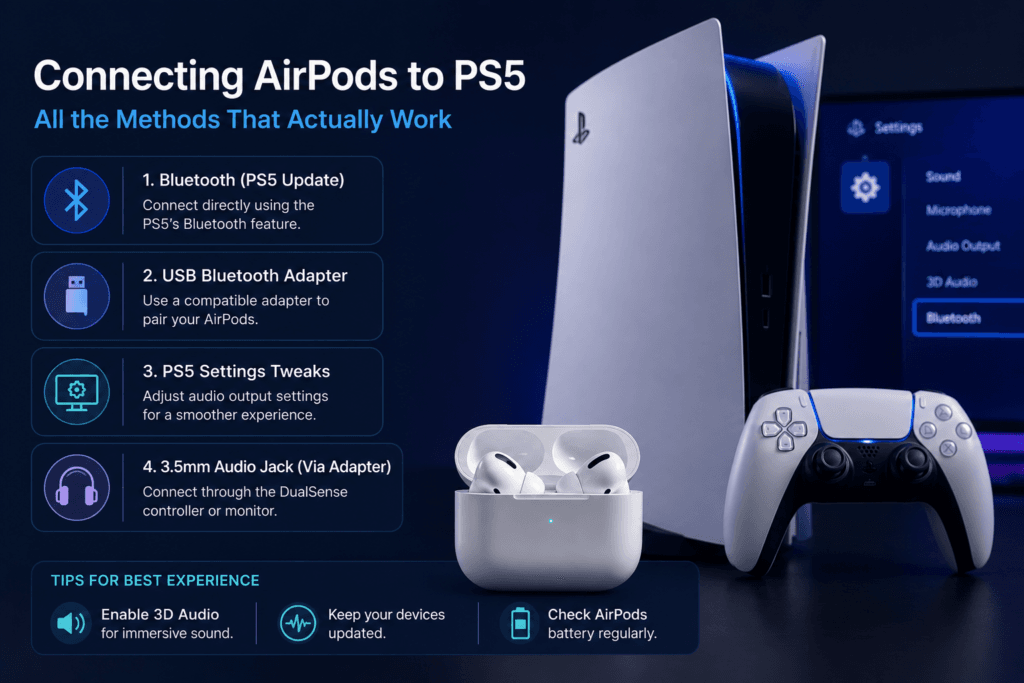
A USB Bluetooth adapter is the most accessible workaround for connecting AirPods to a PS5. The process takes about five minutes and requires no technical expertise, though the results depend heavily on the adapter you choose and where you plug it in.
Start by plugging the Bluetooth adapter into one of the PS5’s USB ports. The front USB-A port works, but the rear USB ports tend to deliver a more stable connection with less physical interference from your hands or the controller cable. Once plugged in, the adapter should power on automatically and enter pairing mode, usually indicated by a flashing LED.
Next, put your AirPods into their case, open the lid, and press and hold the small button on the back of the case until the status light flashes white. This forces the AirPods into Bluetooth pairing mode rather than attempting to reconnect to a previously paired Apple device. From here, most adapters handle the connection automatically within 10 to 20 seconds. You’ll hear a tone or chime in the AirPods when pairing succeeds.
Head into the PS5 settings to confirm the connection is active. Navigate to Settings, then Sound, then Audio Output. Under Output Device, you’re looking for the adapter to appear as a recognized audio device, typically listed as something generic like “USB Audio Device” rather than “AirPods.” Select it, then set your headphone audio format to Linear PCM if you’re experiencing audio dropouts, since some adapters struggle to pass through more complex audio formats reliably.
For microphone input, go to Settings, then Sound, then Microphone. Set Input Device to the same USB audio device. Keep in mind that AirPods on a Bluetooth adapter will almost always use the Bluetooth headset profile for mic input, which compresses audio quality significantly. The mic will work for party chat and game communication, but it won’t sound as clean as it does when the AirPods are connected directly to an iPhone or Mac.
One overlooked step that prevents most failed connections: after pairing, go back into the PS5’s Sound settings and confirm the audio output device has not reverted to TV speakers or HDMI. The PS5 does not always switch output automatically when a USB audio device is detected. You have to set it manually every session unless the adapter supports persistent device memory that the PS5 respects on boot.
If the connection drops repeatedly or audio stutters, move the adapter to a different USB port, reduce the distance between the console and AirPods to under six feet, and remove other active Bluetooth devices from the area. Walls, metal surfaces, and nearby 2.4 GHz Wi-Fi routers all degrade Bluetooth signal quality in ways that become noticeably worse during extended gaming sessions.
Dedicated Wireless Gaming Adapters Versus Generic Bluetooth Dongles
Not all USB Bluetooth adapters perform the same way with AirPods on a PS5, and the difference between a dedicated gaming audio adapter and a generic Bluetooth dongle can determine whether the setup is actually usable or just technically functional.
Generic Bluetooth dongles in the $10 to $20 range typically use older Bluetooth standards such as 4.0 or 4.2, lack aptX Low Latency codec support, and introduce audio delays in the 60 to 100 millisecond range. That delay is mostly imperceptible when watching a movie or listening to music, but during a fast-paced game it creates a noticeable gap between what you see and what you hear. Explosions sound like they happen a beat after the visual, footsteps don’t sync with on-screen movement, and dialogue in cutscenes drifts out of sync. Generic adapters also tend to have weaker antenna designs, which means connection stability suffers at distances beyond a few feet.
Dedicated gaming Bluetooth adapters from brands like Avantree, 1Mii, and HomeSpot are built specifically to minimize latency. Their gaming modes use aptX Low Latency or proprietary low-latency codecs to bring audio delay down to the 32 to 40 millisecond range, which is below the threshold most people consciously perceive as a sync problem during normal gameplay. These adapters usually also offer Bluetooth 5.0 or higher, dual-device pairing, and better range, typically maintaining a clean connection up to 30 feet from the console.
There is one important limitation with AirPods specifically: Apple’s AirPods support the AAC codec natively, but the PS5’s USB audio path does not carry codec negotiation the same way an iPhone does. Most third-party Bluetooth adapters will fall back to SBC when pairing with AirPods through the PS5, rather than using AAC. SBC is a lower-quality baseline codec, which means even a premium adapter is not delivering AirPods’ best possible audio quality in this configuration. The sound is still clear and usable, but AirPods users accustomed to AAC quality on Apple devices will notice the difference in richness and clarity.
If you already own AirPods and want the best wireless experience on PS5 without buying a new headset, a dedicated gaming Bluetooth adapter in the $25 to $40 range is the practical sweet spot. It delivers acceptable latency, stable connectivity, and microphone functionality. If you are willing to spend $80 or more, at that price point most gaming headsets with proprietary USB dongles outperform this setup across every metric including latency, mic quality, and PS5 software integration, so the calculus changes in favor of just buying a headset designed for the platform.
Apple AirPods Features That Stop Working on PS5
When AirPods connect to a PS5 through a Bluetooth adapter, they function as a basic pair of wireless earbuds and nothing more. A significant number of the features that define the AirPods experience disappear entirely, and they don’t come back regardless of which adapter you use or how the PS5 is configured. Understanding exactly which features are lost and why helps set realistic expectations before investing in this setup.
Active Noise Cancellation stops working completely. ANC on AirPods Pro and AirPods Max is not a passive hardware function that runs independently. It is processed and managed through Apple’s H1 or H2 chip, which requires an active connection to a paired Apple device running Apple’s audio stack. When AirPods are connected to a third-party Bluetooth adapter, the H1 or H2 chip is operating in a stripped-down compatibility mode that handles only basic audio transmission. There is no pathway for the PS5 to send commands to the ANC processor, and no Apple device in the chain to manage it. The physical ear tips on AirPods Pro still provide some passive isolation, but the active cancellation is entirely off.
Transparency Mode is also nonfunctional for the same underlying reason. The mode that blends outside sound into your audio feed requires the H-series chip to actively process microphone input and mix it with the audio stream in real time. Without an Apple device orchestrating that process, the feature has no operational pathway.
Head-tracked Spatial Audio, the feature that uses the AirPods’ gyroscope and accelerometer to keep a virtual soundstage anchored to your TV screen as your head moves, is completely inactive. This feature requires a continuous data connection to an Apple device that reads the motion sensors and applies positional audio processing. A Bluetooth adapter connected to a PS5 has no access to those sensors and no way to interpret or route that data even if it did. The PS5 does have its own Tempest 3D audio engine, but it cannot communicate with AirPods’ spatial audio system through a third-party adapter.
Automatic ear detection stops functioning. The optical sensors inside AirPods that pause audio when you remove an earbud from your ear only work when paired to an Apple device via Apple’s proprietary W1 or H-series protocol. A Bluetooth adapter sees AirPods as a generic headset, which means it receives no sensor data at all. Audio will continue playing whether the AirPods are in your ears or sitting on a table.
Gesture controls and touch commands that you have customized in iOS settings, such as skipping tracks or invoking Siri, do not translate to the PS5 environment. The touch hardware on the AirPods stem still registers input, but the commands are interpreted through the Apple ecosystem and have no mapping in the PS5’s audio or input system.
Finally, the AirPods will not appear in the Find My network, will not display their battery level in any PS5 interface, and will not automatically reconnect to your iPhone or iPad when you return to it unless you manually re-pair them through the iPhone’s Bluetooth settings afterward. Each time you switch the AirPods between the PS5 adapter and your Apple devices, you are manually breaking and re-establishing the pairing relationship rather than using Apple’s seamless device switching.
Bluetooth audio profiles define how devices exchange audio capabilities and functions. When a headset connects using standardized profiles such as A2DP for media streaming or HFP for hands-free communication, the available features are limited to what those profiles and negotiated codecs support. Vendor-specific hardware features that are not exposed through the Bluetooth profile layer cannot be accessed by the connected device.
The bottom line on connecting AirPods to a PS5 is this: it works, but it works as a compromise. A USB Bluetooth adapter bridges the technical incompatibility between the PS5’s lack of native Bluetooth audio output and your AirPods, and for casual gaming sessions or watching content on the console, the setup is genuinely usable. The audio quality through SBC is acceptable, microphone input functions for party chat, and the latency on a quality gaming adapter is tolerable for most game genres. Where it falls apart is in anything requiring precise audio timing, in the full AirPods feature set that makes them worth their price, and in the kind of seamless integration that Sony’s own Pulse headsets or third-party gaming headsets with proprietary dongles deliver out of the box. If you already own AirPods and need a wireless audio solution for PS5 today, the Bluetooth adapter route is a reasonable stopgap. If you’re building a dedicated gaming audio setup from scratch, the PS5 ecosystem rewards headsets designed for it with lower latency, better mic performance, and full software integration that no adapter workaround can replicate.
Frequently Asked Questions
Can you connect AirPods to PS5 without any adapter?
No. The PS5 does not support Bluetooth audio output natively, which means AirPods and all other Bluetooth headphones cannot pair directly with the console through its built-in Bluetooth hardware. Sony restricts Bluetooth audio on PS5 to prevent latency issues that would affect gameplay. The only way to use AirPods wirelessly with a PS5 is through a USB Bluetooth adapter plugged into one of the console’s USB ports, which acts as an independent Bluetooth transmitter that the PS5 treats as a standard USB audio device.
Do AirPods Pro work better than regular AirPods on PS5?
Not in any meaningful way for gaming purposes. When connected to a PS5 via a Bluetooth adapter, both standard AirPods and AirPods Pro function as basic Bluetooth earbuds using the same SBC codec and similar latency. AirPods Pro’s Active Noise Cancellation and Transparency Mode are completely non-functional in this configuration, so the main hardware advantages of the Pro model do not carry over to the PS5 environment. The physical ear tips on AirPods Pro provide passive isolation that standard AirPods lack, which some users find comfortable during long sessions, but this is a fit benefit rather than a technical one.
Will the AirPods microphone work for PS5 party chat when using a Bluetooth adapter?
Yes, with some limitations. Most USB Bluetooth adapters support two-way audio, meaning they handle both audio output to your AirPods and microphone input from them simultaneously. On the PS5, you set the USB audio device as both your output and input device in the Sound settings, and the AirPods mic will be active for party chat and in-game voice communication. The catch is that Bluetooth microphone input uses a compressed, lower-bandwidth profile that noticeably reduces mic quality compared to what AirPods deliver when connected directly to an iPhone. Teammates will hear you clearly, but the audio will sound more compressed and less natural than you might expect from AirPods.
What is the best alternative to AirPods for PS5 wireless audio?
Sony’s own Pulse Explore and Pulse Elite headsets represent the highest level of PS5 wireless audio integration, with their proprietary USB dongle delivering under 20 milliseconds of latency, full Tempest 3D Audio support, and lossless audio transmission. If you prefer a third-party option, headsets from SteelSeries, Astro, HyperX, and Razer that include proprietary USB dongles offer comparable low-latency performance and full PS5 compatibility at various price points. All of these options significantly outperform any AirPods-plus-adapter setup in latency, mic quality, and PS5 software integration.