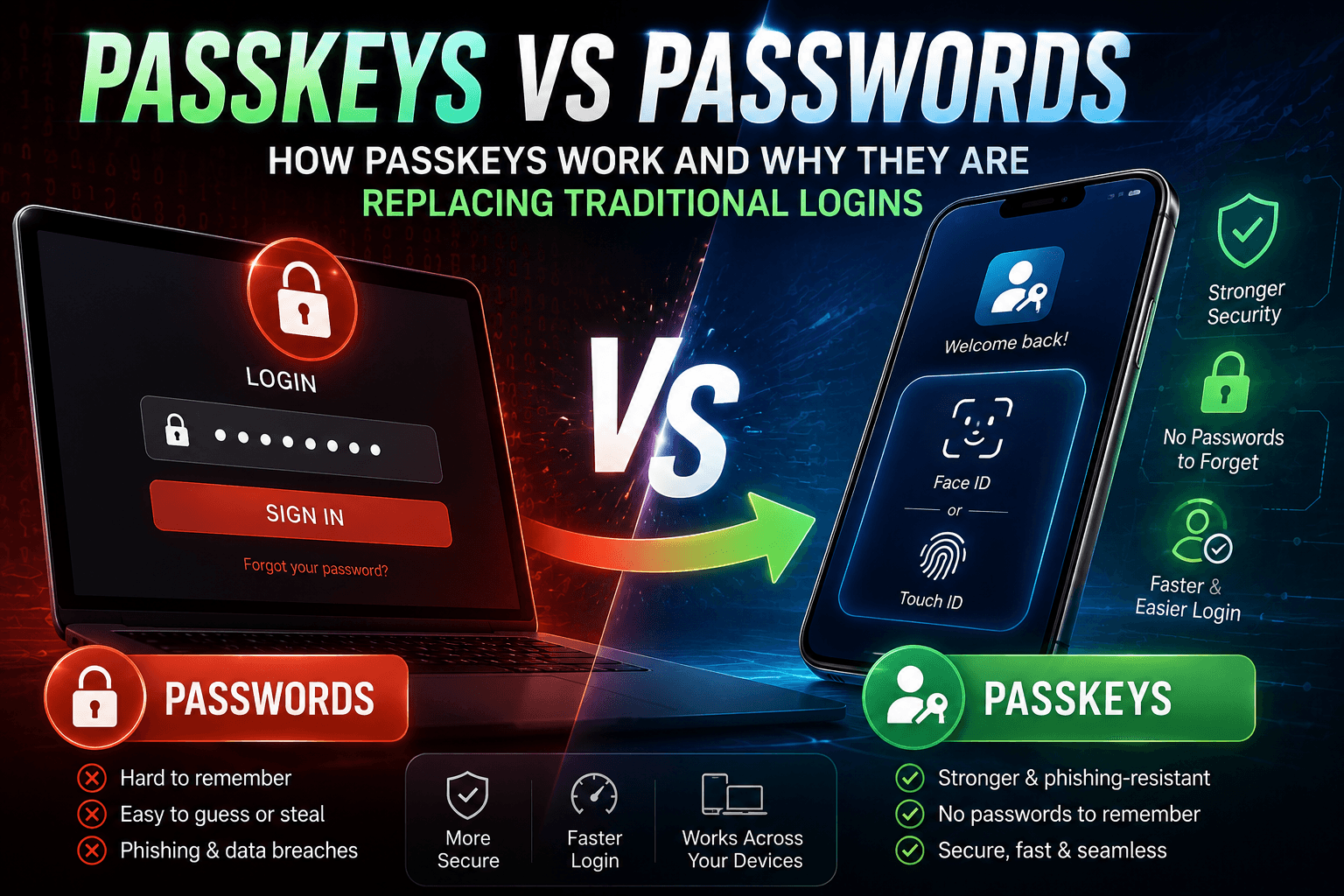
Passwords have been the backbone of digital identity for decades, but 2026 may be the year they finally start their exit. Passkeys represent the biggest identity security shift of the decade, and if you haven’t made the switch yet, you’re leaving a meaningful vulnerability open. Check out our Tech articles for more on the tools reshaping how we live online. From your iPhone to your Windows PC, passkeys are now baked into every major platform, and setup takes under two minutes. For deeper context on the threat landscape driving this change, our cybersecurity coverage tracks what’s pushing organizations to replace passwords entirely.
Key Takeaways
- Passkeys replace traditional passwords with cryptographic credentials tied to your device and biometric authentication.
- FIDO2 and WebAuthn passkeys dramatically reduce phishing, credential stuffing, and password reuse risks.
- Major platforms including iPhone, Android, and Windows now support passkeys natively through Apple, Google, and Microsoft ecosystems.
- Synced passkeys improve convenience across devices, while physical security keys remain the highest-assurance option for sensitive accounts.
- Passkeys are becoming a mainstream authentication standard in 2026, but account recovery and cross-platform portability still have limitations users should understand.
What Are Passkeys, Exactly?
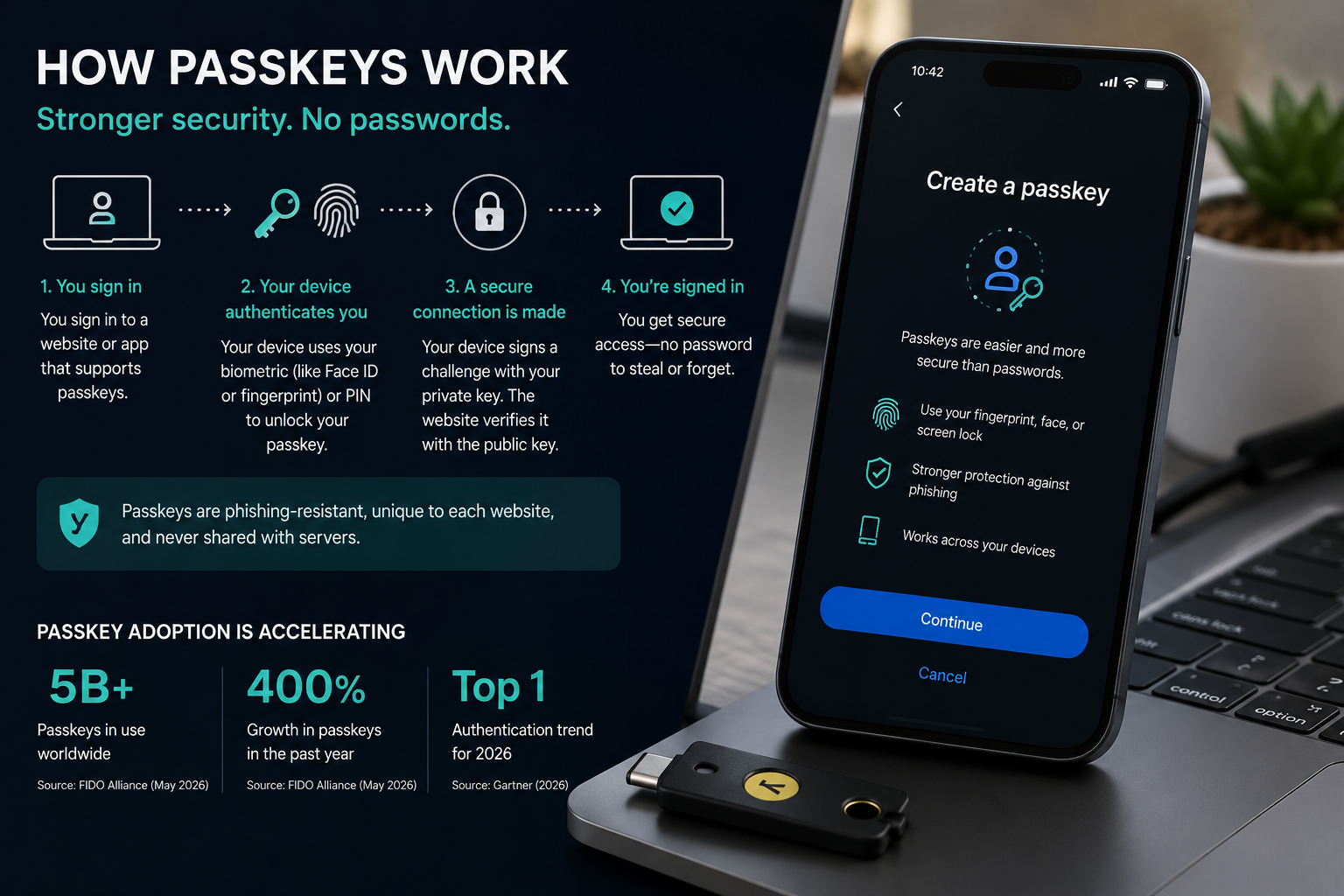
A passkey is a cryptographic credential tied to your device and biometrics, replacing your password with a private key that never leaves your hardware and a public key stored on the server.
At its core, a passkey uses public-key cryptography based on the FIDO2 and WebAuthn standards. When you register with a website, your device generates a key pair: a public key that the website stores, and a private key that stays locked on your device (or synced securely through your password manager). When you sign in, the website sends a challenge, your device signs it with the private key using your biometric (Face ID, fingerprint, or Windows Hello PIN), and the server verifies the signature using the public key. Your private key is never transmitted. Phishing attacks that steal passwords simply have no equivalent attack surface here.
According to NIST SP 800-63Bsup1: Incorporating Syncable Authenticators into NIST SP 800-63B, syncable passkeys satisfy Authenticator Assurance Level 2 (AAL2) requirements when paired with appropriate threat mitigations, providing a federal-grade authentication pathway that hardware-bound and synced credentials can both fulfill under defined conditions.
Passkeys vs. Passwords: How Do They Stack Up on Security?
Passkeys eliminate the three biggest password attack vectors: phishing, credential stuffing, and server-side data breaches, because no shared secret is ever stored or transmitted.
The table below compares passkeys and traditional passwords across the security dimensions that matter most in 2026.
| Security Factor | Traditional Passwords | Passkeys (FIDO2/WebAuthn) |
|---|---|---|
| Phishing resistance | None (easily stolen via fake login pages) | Strong (private key never leaves device; origin-bound) |
| Credential stuffing risk | High (reused passwords exploited at scale) | None (no reusable credential to stuff) |
| Server breach exposure | High (hashed passwords can be cracked) | None (only public key stored server-side) |
| Man-in-the-middle vulnerability | High without MFA | Low (cryptographic challenge is site-specific) |
| Cross-device availability | Yes, if synced via password manager | Yes, via iCloud Keychain, Google Password Manager, or third-party managers |
| Account recovery complexity | Standard password reset flows | Requires fallback method or backup passkey |
Does Syncing Passkeys Across Devices Weaken Security?
This is one of the most common concerns, and it’s a fair one. When you sync a passkey through iCloud Keychain or Google Password Manager, the private key leaves a single device, which some security professionals flag as a theoretical weakening versus hardware-bound keys. That said, both Apple and Google encrypt synced passkeys end-to-end, meaning the sync provider cannot read them. A 2026 IEEE empirical study on FIDO2/WebAuthn compliance and interoperability found that synced passkeys via iCloud Keychain and QR code-based cross-device workflows performed consistently across Chrome, Safari, Edge, and Firefox, with no significant interoperability gaps for standard authentication flows.
How to Set Up Passkeys in 2026: Platform-by-Platform Guide
Setting up a passkey takes under two minutes on any major platform and requires only your existing biometric authentication method, whether that’s Face ID, fingerprint, or a PIN.
How to Set Up Passkeys on iPhone (iOS 17 and Later)
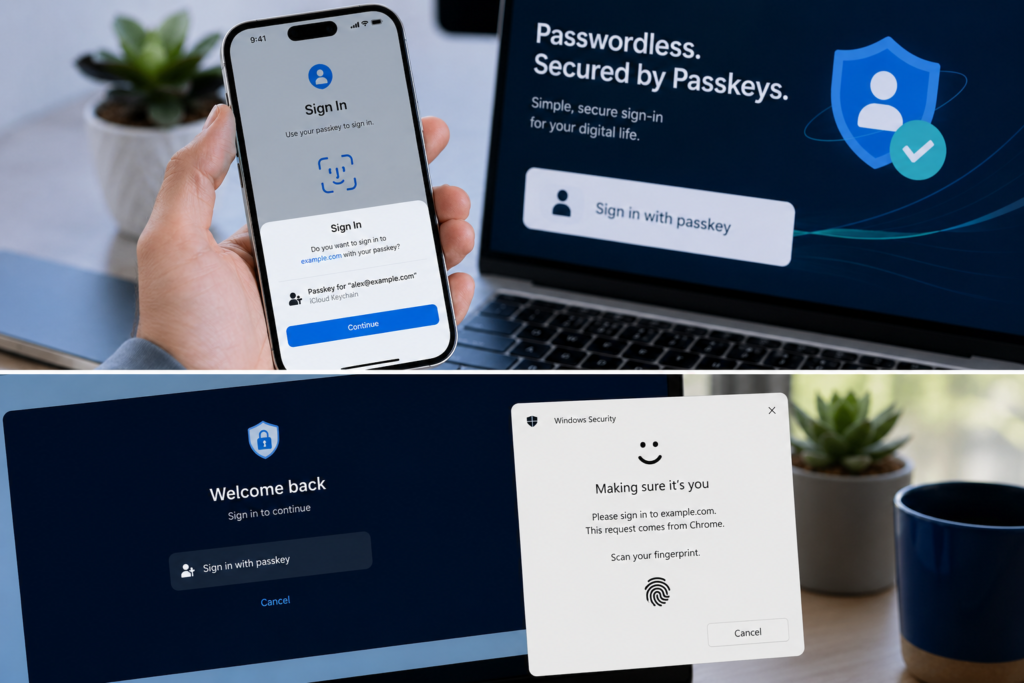
Apple stores passkeys in iCloud Keychain by default, syncing them across your iPhone, iPad, and Mac. To set one up: open a supported app or website and look for the passkey option in account settings (usually under “Security” or “Sign-in options”). Tap “Create a Passkey” and authenticate with Face ID or Touch ID. The passkey is saved automatically. For cross-device sign-in on a device that doesn’t have your passkey, tap the QR code option on the other device, scan it with your iPhone, and authenticate with your biometric.
How to Set Up Passkeys on Android
Android 9 and later supports passkeys through Google Password Manager (the default) or a third-party manager like 1Password or Bitwarden. In your Google account settings, navigate to Security and then “Passkeys,” where you can create one directly. For third-party apps, the setup flow appears during sign-in or in security settings. Android uses your fingerprint sensor or face unlock to authenticate. Passkeys sync to your Google account and are available across Android devices signed in to the same account.
How to Set Up Passkeys on Windows 11
Windows 11 supports passkeys natively through Windows Hello (PIN, fingerprint, or facial recognition). According to the official Microsoft Support guide on creating and saving a passkey, you can save passkeys for Microsoft personal and work accounts using Windows Hello, Microsoft Authenticator, iCloud Keychain (if Safari is installed), Google Password Manager, or a physical USB security key like a YubiKey. During sign-in, select “Sign in with a passkey” and follow the prompts to create and store the credential.
What About Physical Security Keys?
Hardware security keys such as YubiKey 5 series or Google Titan support FIDO2 and can store passkeys directly on the device. These are the highest-assurance option and are recommended for high-risk accounts (financial, enterprise, government). They are not synced and require physical possession, which eliminates remote attack scenarios entirely.
According to the Office of Information Security at Washington University in St. Louis, passkeys can be stored either on the device itself or within a password manager, and cross-device sign-in is handled via QR code and a Bluetooth proximity check, ensuring the device initiating the login is physically near the device with the passkey.
Are There Any Limitations Worth Knowing?
Passkeys are broadly supported in 2026, but account recovery, legacy system compatibility, and ecosystem lock-in remain practical considerations for most users.
If you lose access to your primary device and don’t have a backup passkey or recovery method configured, regaining account access can be cumbersome. Most major platforms (Apple, Google, Microsoft) offer account recovery flows, but they vary in complexity. Additionally, not every website or app has adopted passkeys yet. The NIST SP 800-63B Digital Identity Guidelines, updated to include syncable authenticator guidance, acknowledge that implementation variance across relying parties remains a challenge for broad ecosystem consistency.
Alternative Perspectives
Security researchers and privacy advocates are largely aligned that passkeys are a meaningful improvement over passwords, but some experts argue the ecosystem benefits large platform operators (Apple, Google, Microsoft) disproportionately by tying authentication to their sync infrastructure. Others note that for populations with limited access to biometric-capable devices or reliable internet for sync, traditional password managers plus strong MFA may still be more practical in the near term. Enterprise security teams have raised questions about audit trails and provisioning workflows when passkeys replace federated SSO in mixed environments. These are legitimate friction points, not reasons to avoid passkeys, but they are worth weighing depending on your threat model and organizational context.
Disclaimer
Authentication features, platform compatibility, recovery methods, and passkey support may change over time depending on device manufacturers, operating systems, browsers, and individual service providers. Always verify the latest setup instructions and security recommendations directly with Apple, Google, Microsoft, FIDO Alliance, or the platform you are using before making changes to important personal, financial, or work-related accounts.
Frequently Asked Questions About Passkeys in 2026
The private key component of a passkey never leaves your device unencrypted, and authentication is cryptographically bound to the specific website’s origin, which blocks phishing. An attacker cannot replay a captured authentication response on a different site. Physical theft of an unlocked device is a residual risk, but biometric lock screens significantly limit that exposure.
Passkeys stored in iCloud Keychain are not automatically portable to Google Password Manager. You would need to re-register passkeys on the new platform by signing in with an alternative method (such as a one-time code) and creating a new passkey. This cross-ecosystem portability gap is one area the FIDO Alliance is actively working to improve through credential export standards.
Yes. Passkeys are created per service, not as a universal credential. Each website or app where you want to use a passkey requires you to go into that account’s security settings and create one. Once created, it syncs across your devices automatically if you’re using a cloud-based manager like iCloud Keychain or Google Password Manager.
Passkeys using FIDO2/WebAuthn meet the Authenticator Assurance Level 2 (AAL2) threshold outlined in NIST digital identity guidelines, which is the standard many financial institutions and healthcare systems target for strong authentication. Whether a specific bank or healthcare portal accepts passkeys depends on that organization’s implementation, so check with your provider directly.